Wednesday, February 18, 2009

one thing ends - one thing begins

It comes with regret that I announce the closing of this blog. There are so many demands on my time - and something must give.

After going through the validation process with Lightroom, and finding it "less than appropriate" as a tool for my forensic workflow, I have found it to be an amazing artistic tool. A tool with a great following and tons of support from authors and bloggers world wide.

I find no reason to duplicate the efforts of the many good folks already writing about Lightroom from the artistic and photography points of view, so I leave you in their good care.

Thank you very much for your time and patience. Of course, you can still find me at the Forensic Photoshop blog. :-)

Yours,

Jim Hoerricks
Forensic Image / Video Analyst

Thursday, February 5, 2009

Collaboration basics

A reader sent in a note about using Lightroom 2 in a multi-user environment. Since Lightroom doesn't offer network support, she wanted to know the best way to set up Lightroom to share catalogs and images with the others in her unit.

One of the ways that you can help ease the pain of sharing catalogs in a multi-user environment is to save your catalogs and images on an external drive.

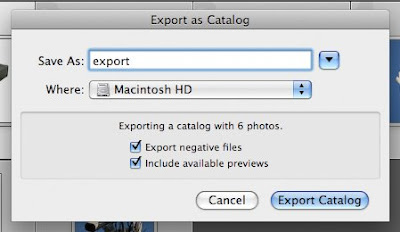
In setting this up for the first time, you and you coworkers will need to do a bit of importing and exporting. If the images are on your internal hard drive to start with, you'll need to export them to the external drive. Simply select the images that you want to move and click on File>Export as a Catalog. Then give the new catalog a name and point the dialog to your external drive. You'll want to export the negative files and previews as you will most likely change the Develop adjustments after the export to your external drive.

Remember: if you are opening a Lightroom 1 catalog for the first time with Lightroom 2, choose File>Import from Catalog. 

Once you've exported your catalogs to an external drive, sharing is rather easy. Just select File>Open Catalog (Or File>Open Recent). Then select Relaunch when prompted.

With a little planning, sharing catalogs can be easy.

Thursday, January 29, 2009

Lightroom forensics - in forensis

I came across an outstanding paper from Sam Peisert, Matt Bishop (both from UC Davis), and Keith Marzullo (UC San Diego) called Computer Forensics In Forensis.

Here's the abstract:

"Different users apply computer forensic systems, models, and terminology in very different ways. They often make incompatible assumptions and reach different conclusions about the validity and accuracy of the methods they use to log, audit, and present forensic data. In fact, it can be hard to say who, if anyone is right. We present several forensic systems and discuss situations in which they produce valid and accurate conclusions and also situations in which their accuracy is suspect. We also present forensic models and discuss areas in which they are useful and areas in which they could be augmented. Finally, we present some recommendations about how computer scientists, forensic practitioners, lawyers, and judges could build more complete models of forensics that take into account appropriate legal details and lead to scientifically valid forensic analysis."

It's written about Computer Forensics, but a lot of the themes carry over to our work and our on-going discussion and debate about how to best utilise these artistic tools in a "forensic" setting.

Here's a good quote:

"Those involved in computer forensics often do not understand one other. Groups have evolved separately with only little interaction. Each group has largely separate conferences, journals, and research locations, and few attempts have successfully brought these groups together. Indeed, the language used to describe computer forensics and even the de nition of the term itself varies considerably among those who study and practice it: computer scientists, commercial ventures, practitioners, and the legal profession. As a result, it is dicult for these groups to communicate and understand each others' goals." Amen.

Computer crimes folks preach removing the power cord as a method of shutting down a system. Yet, do that to many Linux based DVRs and you'll loose everything. We seem to be working in the same area of technology, but we each have our issues and the things that are of vital importance.

It's an outstanding paper and well worth reading.

Thursday, January 22, 2009

Lightroom catalogs

I wasn't sure how well the last post would go off when I put it up here. I said that I was looking into the issue and believed that I owed everyone the answer, good or bad or otherwise. The week's e-mails let me know how everyone felt about what I had to say. The responses weren't all that favourable. Here's a response to many of them:

"A catalog is how Lightroom tracks the location of files and remembers information about them. It’s like a database that contains a record of your photos. This record is stored in the catalog and contains data, such as preview information, links that indicate where the photos are located on your computer, metadata that describes the photos, and editing instructions recorded in the Develop module. When you rate photos, add metadata and keyword tags, organize photos into collections, or remove photos from the catalog—even when the original photo files are offline—the settings are stored in the catalog." - From Adobe.com

"The Lightroom catalog is a database ..." - From Adobe.com

Over on the Forensic Photoshop blog, I've posted a description of a recent decision regarding Metadata and discovery from the 2nd Cir. "Examples include ... database information."

If the Lightroom Catalog is a database that contains information, including Metadata, which may pertain to a case; and Metadata is discoverable ... then is your Lightroom catalog discoverable? With the latest trends in e-discovery, why would anyone not want to know the answers?

I never said it was or wasn't. I said to check with your council and to use it with caution. I also said that I love using it in private work, which is where I use it (exclusively). 

With this discussion behind us ... let's move on. Until then, enjoy.

Thursday, January 15, 2009

Yah, yah ... I know

I know it's been a while since I've posted here. It's certainly not from a lack of working on and in Lightroom. I've been bouncing off the walls validating the program, then the upgrade ... talking with the engineers ... talking with legal experts ... and much more.

The update to all this and the determination we've all been waiting for:

Use Adobe Photoshop Lightroom with caution in the criminal justice / law enforcement world ... and only after having a serious discussion with your legal team.

This opinion (which is entirely my own) has nothing to do with how Lightroom works with images (edits, tonal controls, etc.) It has everything to do with e-discovery and record retention rules and how they vary from state to state.

For those like Adobe's Rick Miller and Julieanne Kost, who have photography passions outside their office, Lightroom is a great tool. They may have one catalog for personal stuff, and one catalog for professional stuff. Organising things inside each catalog is simple and efficient.

Unfortunately, those of us in the LE world have to deal with discovery. Depending on the jurisdiction, that catalog may be discoverable (it is, after all, a "document" that relates to the case). If the catalog is open for discovery, then you don't necessarily want to mix cases within the same catalog (you may in "serial" situations). This leaves you with hundreds or thousands of catalogs over time.

Again, this isn't necessarily a bad thing. It's just an organisational headache. Additionally, there isn't a way (currently) to search across catalogs. This combined with a (current) lack of network support makes it harder to manage in multi-user environments.

From what I've gathered, these issues won't be addressed soon. Remember, the LE market is tiny compared to the prosumer and professional photography market. We may be professional photographers ... but we have to answer to an entirely different client once that image has been captured.

Don't get me wrong. As a professional photographer, I love the program and use it almost daily (in private practice). For the "one-man cop shop" it may be the best thing for you in terms of asset management. Just use it with care and with a sound knowledge of how the program works under the hood.

I'd be happy to get into more detail off-line. In the mean time ... we'll resume the previously scheduled weekly posts next Thursday. We've got a lot of catching up to do.

Until then ... enjoy.

Thursday, October 23, 2008

Lightroom 2 Adventure

There's been a bunch of new books on the market ... as always happens when a new version is released. I came across Photoshop Lightroom 2 Adventure by Mikkel Aaland and really loved it, so I had to share a bit about it.

First off, I like the premise: learning the tools wrapped in an adventure format - traveling around Tasmania and Iceland. There's a lot of information to digest, and the adventure format helps you to digest it easily. Plus the interesting stories related to the pictures used keeps things lively.

Also, it was cool to see a small feature on each of the contributing photographers. My particular favourites were the self-portrait of Maki Kawakita (pg 180-1) and Peter Eastway's Peninsula Storm (pg. 8-9).

And there's tons of tips and tricks throughout - like pressing L to engage the Lights Out feature. Give it a try - it's great for presentations.

Check it out on O'Reilly by clicking here. It's definitely worth the read.

Thursday, October 16, 2008

PPhotoshop and Lightroom Integration - Part 3

If we've checked the Stack with original box on the way out to Photoshop, the rest of the process should be an easy one. Once you've preformed your clarification in Photoshop and saved the copy file, it should be tucked neatly away with the original in the same folder when you are done.


For the "what should I do in Photoshop?" question ... click here.

In other news ... Adobe Labs has a released candidate for Lightroom 2.1 available for download. Check it out by clicking here.

Thursday, October 9, 2008

Photoshop and Lightroom Integration - Part 2

I've received a bunch of e-mails about working Lightroom into the workflow. Lightroom is great for managing your photos and/or getting them off of your camera. It's also a great little program for making quick adjustments. But what about using it with Photoshop? It's really easy.

We just looked at setting up Lightroom to make this process as easy as possible. Now, let's look at how it works.

After you've imported the image and made whatever adjustments are necessary in Lightroom, click on Cmd-E/Ctrl-E to open the Edit with Photoshop dialog. You can also find it in the menu by clicking on Photo>Edit In>Edit in Adobe Photoshop CS3 (assuming you have CS3 loaded, of course).


You are then presented with a dialog box and three options.
  1. Edit a Copy with Lightroom Adjustments - (RAW shooters, this is your only option) this applies the adjustments that you just made in Lightroom to the image, then opens it up in Photoshop.
  2. Edit a Copy - just like it sounds, you'll open up a copy of the image in Photoshop ... but the Lightroom adjustments won't be applied.
  3. Edit Original - again, just like the box says ... we're working on the original image here. It should go without saying that this option is not recommended for our work.
For me, I choose the first option most of the time. After all, what's the point of using the cool correcting features of Lightroom, only to abandon them on the way to Photoshop?


Stack with original should be checked so that Lightroom will keep your Photoshop edited version with the original image, making it easier to keep organised.

Next we'll see what happens when we get to Photoshop and back again. Until then, enjoy.

Wednesday, October 1, 2008

Photoshop and Lightroom Integration - Part 1

One of the first things we need to do in working these two programs together is to get our Preference settings synchronised.


In the Lightroom Preferences, click on External Editing. You'll be given a series of choices. For File Format, I generally choose PSD because it results in smaller files sizes. Choosing PSD has its issues, as the dialog describes (we'll go over this later). Regular readers of my blogs will already know my preference for ProPhoto RGB as the Color Space to work in, as well as the benefits of working in 16 bit mode. For Resolution, I've chosen what works best with my particular printer.

Once I've set these, I can move on to Photoshop to make sure that these two are playing nicely together. Upon choosing PSD, Lightroom warns us that we need to make sure that we select Maximize Compatibility in Photoshop or we'll face dire consequences, up to and including death by flogging. To do this, we open the Preferences dialog in Photoshop.


In the File Handling section, we can select to Always Maximize PSD Compatibility. You can set it to Ask, but you'll quickly tire of clicking the OK button each time.

In the next installment, we'll look at what happens when you want to move from Lightroom to Photoshop. Until then ... enjoy.

Integration questions explored

We're at a crazy time right now. CS4's been announced and everyone is rushing to put together their tutorials and re-write their books. Things are little different with us. We've got to wait to get the shipping version of the software, then validate our processes with the new tools.

With that in mind, many will not be upgrading to CS4 in their workflow right away. Sure they may be one of the first to purchase the new gear (myself included), but it'll take a while to integrate it into the day to day action.

So, in the mean time, we'll look at the integration of Lightroom 2 and PSCS3 - using the two together and bouncing between them. This series of posts will serve to answer a ton of questions received over the last month. And ... it'll give us something to work on rather than going stir-crazy waiting for CS4 to ship.

Until then ... enjoy.

Thursday, September 25, 2008

Catalogs - getting everything together

When last we met, we were working on exporting catalogs. We looked at the quick and easy way to get out images out of Lightroom for discovery. But the quick and easy way did not get us all the information. We wanted something more.

That something more is Export negative files.


With the Export negative files option checked, you will include the original or master photos as well as the catalog info. Depending on how many files you need to export, this process could take some time. You'll want to make sure that you have at least 200MB of disk space available for Lightroom to use as a scratch area.

Including the available previews sends all the Library Grid thumbnails, Loupe views and 1:1 views as part of the export. Make sure that you've rendered your previews before exporting. To do this, go to the Library Module and click on Library>Previews>Render Standard-Sized Previews. You can also choose to render the 1:1 (full resolution) previews from Library>Previews>Render 1:1 Previews. This preview export comes in handy if something happens to the master negatives. Without the negatives, you won't be able to re-render the images.

Exporting in this way insures that all data is sent for discovery. Next week, we'll look at getting these files from someone else and importing them into Lightroom.

Thursday, September 18, 2008

Catalogs continued

In the last post on this subject, I mentioned that Lightroom isn't exactly a multi-user program. With that in mind, how do you share information and catalogs? It's actually quite easy.

The Export feature is designed to allow the sharing of catalogs between different computers running the same version of Lightroom. For discovery purposes, we can export images or an entire catalog. Assuming opposing council's expert has the same version of Lightroom, they should be able to import the catalog and see what we've done.

In the Library module (or the Filmstrip), simply select the relevant images and choose File>Export as Catalog. The dialog box will open and you will select a location to save the new catalog (you can't export images into or combine images with an existing catalog using this method). This will export the images along with basic metadata. This is what makes a catalog export different from a normal file export ... you get everything that's associated with the files.

This basic method is fine for everyday use. But for us, we need something more. We want to be able to export the catalog and include the master files as well, in their native state. In the next installment, we'll see just how easy it is.

Until then, enjoy.

Thursday, September 11, 2008

Thanks for your support!

Well, we didn't quite make the Blurb's Readers Choice Award. But, as a way of saying thanks to all for your continued support, Blurb is offering $10 off the book - Forensic Photoshop. Just enter offer code friendofblurb08 at checkout. Hurry! The offer expires at midnight, Sept. 30, 2008.

Thanks again for all of your continued support.

Lightroom Catalogs

One of the things that I first noticed when looking at Lightroom for law enforcement was how and where the program stores images. The Lightroom Catalog (it used to be a Library in version 1), is the one stop shop for all of your images and associated data. This is both good and bad.

The good news:
When you first install Lightroom, a default catalog is created for you. Most writers have opted for a single catalog workflow, choosing instead to manage their files within the same catalog. For our purposes, it may be necessary (for eDiscovery reasons) to keep each case's files within it's own catalog. In this way, there is no blending of file info across cases. Luckily, creating a new catalog is easy enough. Just click File>New Catalog. Choose an appropriate name (like the case file number) and location ... and you're off to the races. When you want to open an existing catalog, just click File>Open Catalog. This leads us to the bad news.

The bad news:
Lightroom does not allow you to work on several catalogs at once. Neither can you search within a catalog that is not open. This one can become a huge issue as your case files grow. You also aren't allowed to save the catalog to a network share for use by others.

With this in mind, we'll spend September exploring the catalog structure of Lightroom and working through a logical structure and workflow for using catalogs effectively in law enforcement.

Until next week, enjoy.

Thursday, September 4, 2008

Behind the scenes

Whilst at Adobe for the NATIA convention, I had the pleasure of meeting and chatting with Tom Hogarty, Lightroom's Product Manager. He was friendly and extremely forthcoming about what Lightroom can do today, what they want it to do in the future, and what its limitations are. (No, I can't reveal all of their secrets).

Lightroom News recently published an interview with Tom. Check it out by clicking here. I think that you'll see why he is one of Adobe's all stars.

Tuesday, September 2, 2008

vote early - vote often

Forensic Photoshop - the book - is entered in the Photography Book Now contest at Blurb. I'm up against over 1700 books. How can I possibly stand out in the crowd?

One of the categories is the People's Choice Award. I need your help and this is where you come in. If you like what you've seen, click here and voice your opinion. Your support is what keeps this blog going strong ... and free.

Vote early and vote often (just kidding ... they've got the cookies set to only allow one vote per person). In this political season, everyone is wondering who will get the vote for President. I'm hoping to get your vote for People's Choice.

As always, thanks for your support.

Thursday, August 28, 2008

Killer Tips

One of the benefits to NAPP membership is the wealth of information available on Lightroom. Check out the Lightroom Killer Tips blog from NAPP and Adobe. We're heading off for the long weekend. There's a wealth of info there to help quench your Lightroom learning thirst until we return.

If you still haven't joined NAPP, click on the link on the side bar. You won't regret it.

Until then, enjoy.

Thursday, August 21, 2008

easy to see


Once you've imported your images into Lightroom, you'll need a handy way of keeping track of everything. This becomes a huge issue as your collection grows and expands across several hard drives.

Thankfully, Lightroom has a solution for this. It's called the Volume Browser. You'll find it in the Library Module's Folder Panel. It displays the name of the hard drive that the files are stored on, even if you disconnect the drive.

You can also see how much drive space is being used and how much is left. How cool is that?

Until next time, enjoy.

Lightroom and NAPP

Lightroom has been a regular feature of Photoshop User Magazine since it was first released. Since then, NAPP has done of ton of work highlighting this amazing program.

If you are a serious Lightroom user, or considering adding Lightroom to your enterprise ... consider a membership in the National Association of Photoshop Professionals. You won't be disappointed.

Where everyone learns Photoshop - National Association of Photoshop Professionals

Thursday, August 14, 2008

Lightroom Certification

For those interested in certification, the Lightroom Adobe Certified Expert exam is now available. If you are going to take the test, check out the exam prep at Examaids.

Enjoy.